
Campaigns
Run in the background and use the system tray
Keep sending, receiving, and automation running when the window is hidden.
Configure desktop behavior
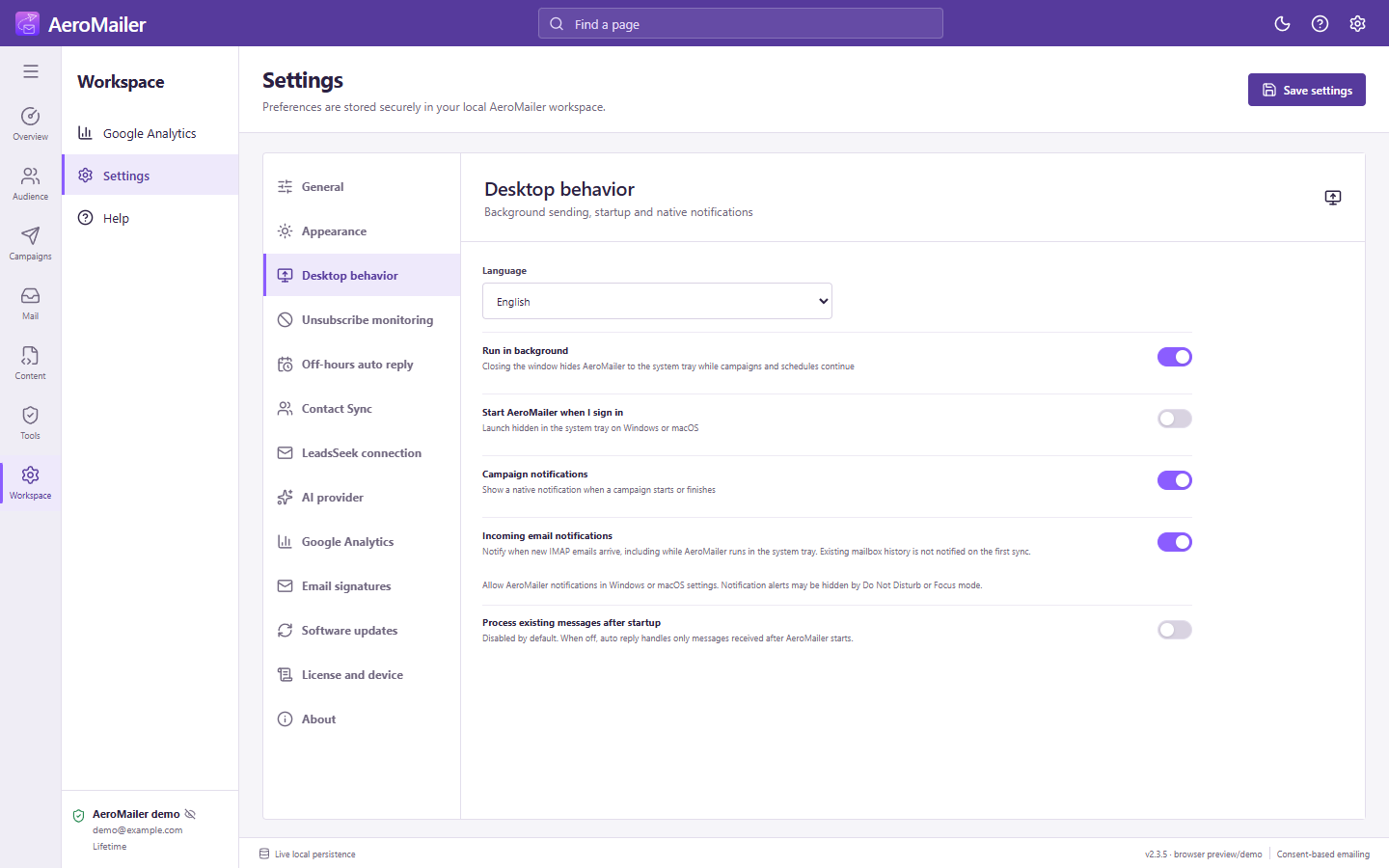
- Open Settings → Desktop behavior.
- Enable Run in background if closing the window should hide the app to the tray.
- Optionally enable Start AeroMailer when I sign in.
- Save the settings.
Close versus quit
With background mode enabled, closing the main window keeps the app process available for campaigns, schedules, enabled IMAP checks, and automation. Reopening uses that running instance. Fully quitting, logging out, losing internet access, or sleeping the computer stops processing.
Startup behavior differs by feature
Unsubscribe checks unread STOP replies after startup when enabled. Auto reply does not process old messages by default; changing Process existing messages after startup can send replies to a backlog. New-mail alerts establish a baseline first. See notification settings.