
Settings and Security
Enable campaign and incoming-email desktop notifications
Control the two alert settings and understand first-sync behavior.
Choose alert types
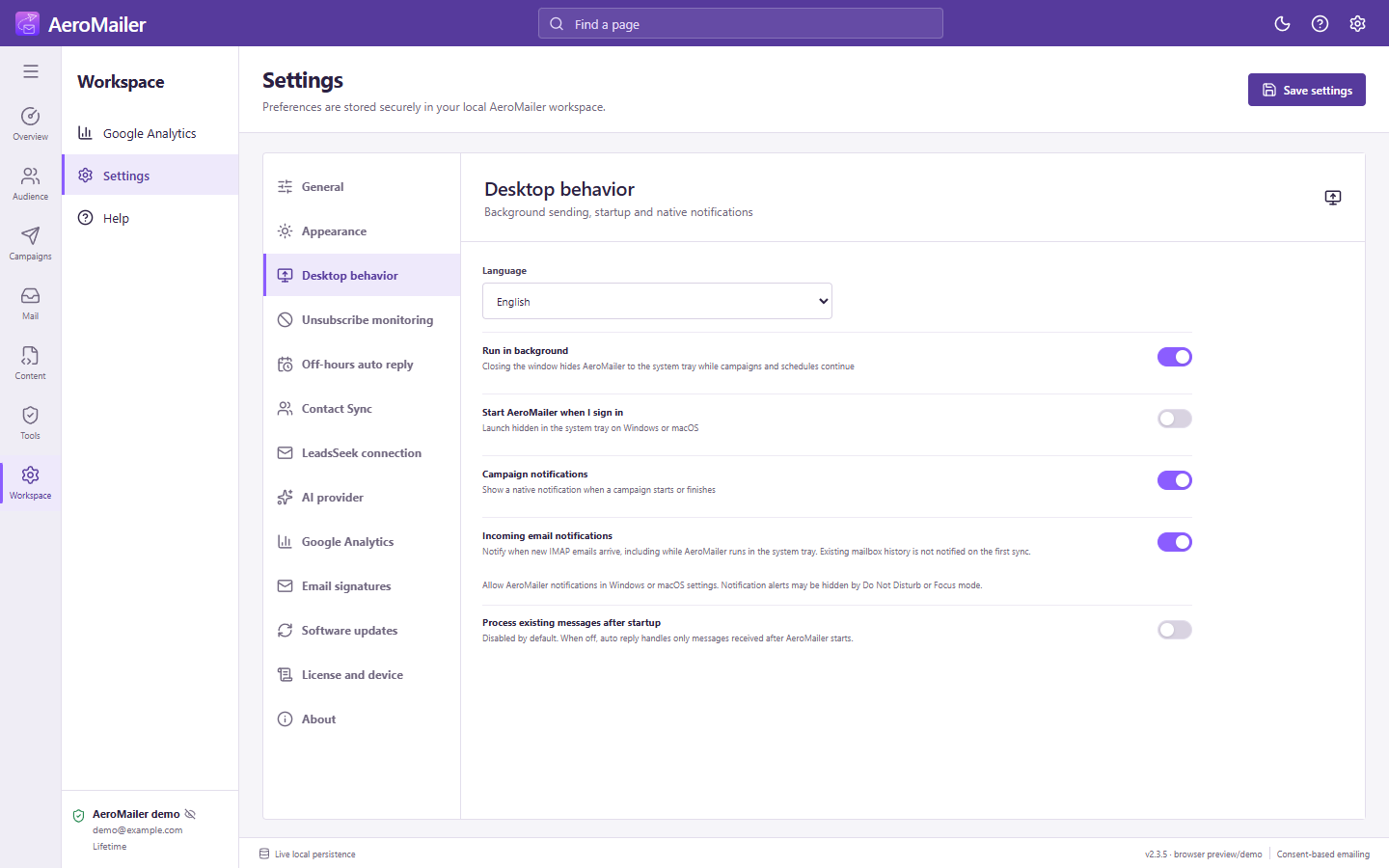
- Open Settings → Desktop behavior.
- Enable/disable Campaign notifications for campaign start/completion.
- Independently enable/disable Incoming email notifications for new IMAP mail.
- Save, and allow AeroMailer notifications in Windows/macOS settings.
Incoming-email behavior
The first successful inbox sync establishes a baseline without alerting for existing history. Later new unread inbox mail can produce grouped account/count notifications. Previously cached/read messages and blocked senders do not trigger new alerts. The alert does not include private message subjects or bodies.
If an alert is missing
Check the IMAP connection, app setting, OS permission, and Do Not Disturb/Focus. Disabling alerts does not disconnect IMAP. Notifications can work in tray/background mode while the process runs; they do not run after the app fully quits.