
Auto Reply
Configure multilingual off-hours auto replies
Set local business hours and the reply used outside them.
Prepare an eligible account
Connect IMAP and save an enabled AI or Rule-based account assignment first. Off-hours replies apply to those accounts; turning the settings switch on does not activate an unassigned inbox.
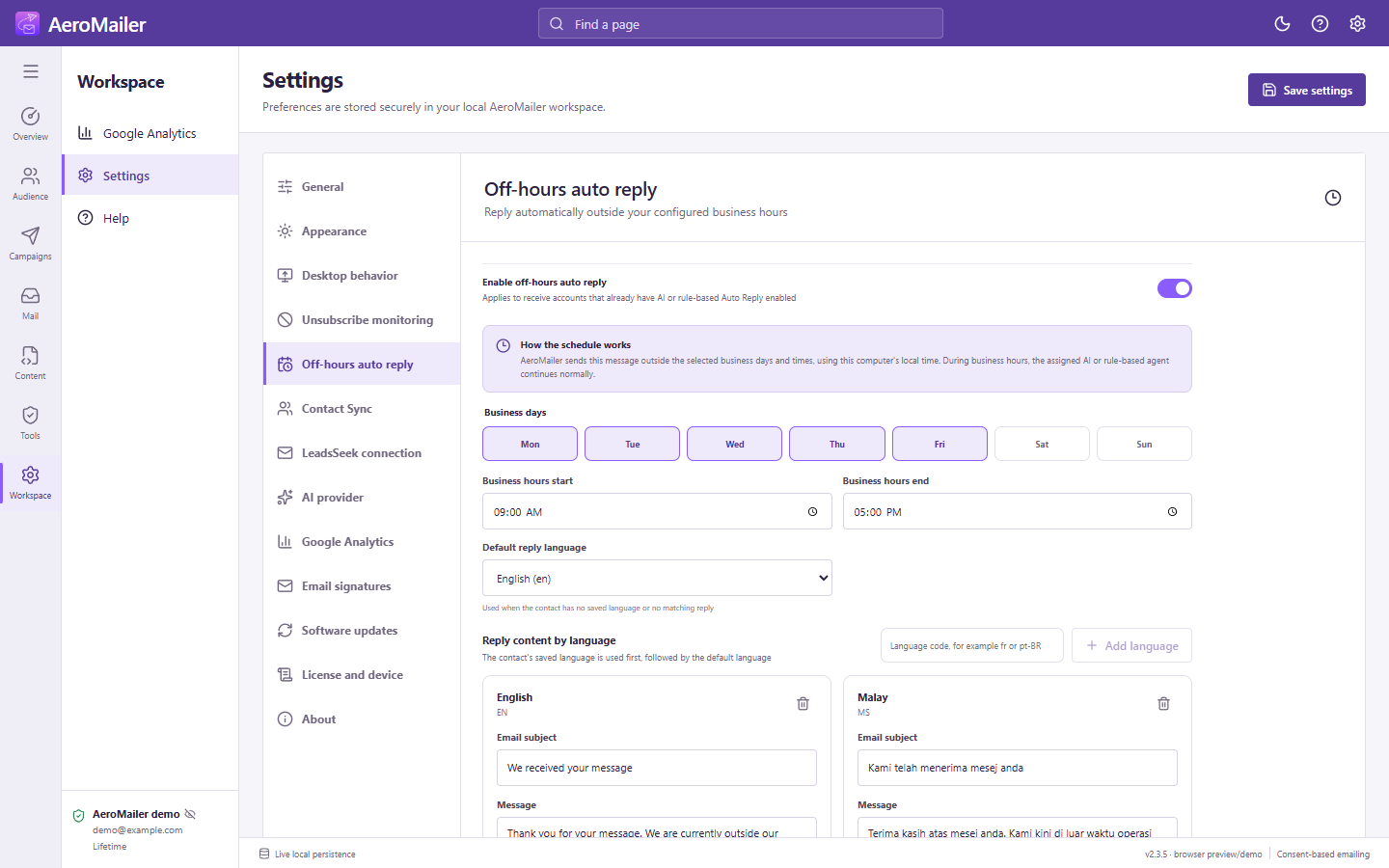
Set the schedule and messages
- Open Settings → Off-hours auto reply and enable it.
- Select Business days, Business hours start, and Business hours end. Times use this computer's local clock.
- Under Reply content by language, complete a subject and message for each language.
- Use Add language with a valid code such as
frorpt-BR, then select Default reply language. - Save and check the account assignment.
Understand the result
Outside the selected days/times, the configured off-hours message replaces the normal agent response. During business hours, the assigned AI/rule agent continues normally. Saved contact language is checked first, including a base-language fallback, then the selected default.
Safety and troubleshooting
At most one off-hours reply is sent per sender/account every 24 hours. Automated, no-reply, marketing, and security messages remain blocked. Check Auto Reply → History with mode Off-hours auto reply. Fully quitting/sleeping the computer prevents replies until processing can run again; read the startup behavior before enabling backlog replies.