
Auto Reply
Build and test multilingual rule-based replies
Create conditions, priorities, reply languages, notes, and attachments.
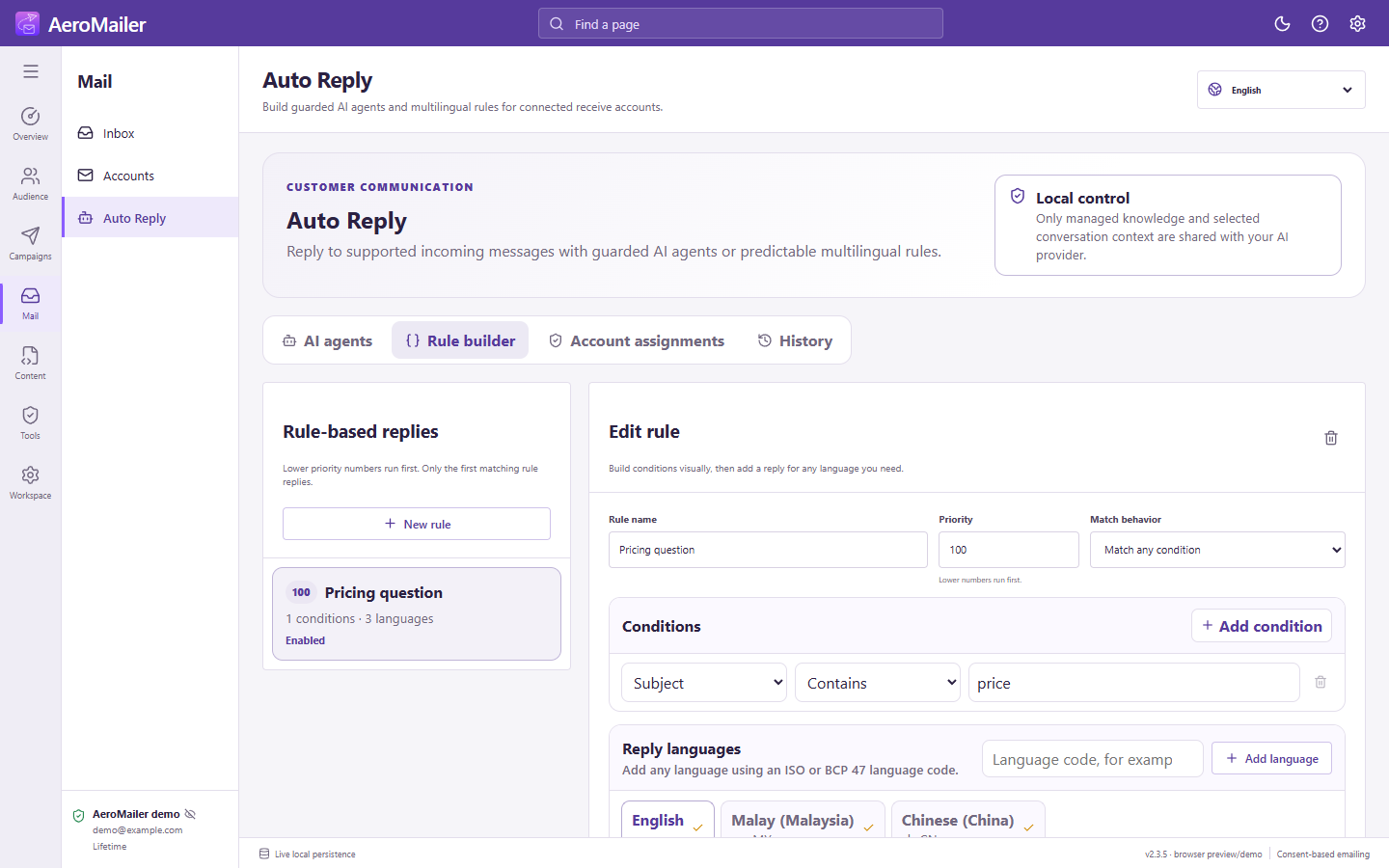
Create a rule
- Open Auto Reply → Rule builder → New rule.
- Enter a rule name and Priority. Lower numbers run first.
- Choose Match all conditions or Match any condition. Add conditions for sender email/domain, subject, message body, or language, with the required comparison and value.
- For example, use Message body contains
pricingfor a price enquiry. - Write the reply subject/body. Add language codes as needed, such as
esorzh-Hant, and choose Default language. - Optionally add a contact-note template and managed attachments; select which attachments the rule sends.
- Enable the rule and select Save rule.
Test before assignment
Enter a sample sender, subject, body, and contact language in the simulator and select Run test. Inspect each condition, winning rule, selected language, reply, and note preview. The simulator does not send email and can show that a higher-priority rule would win.
Use the rule
Assign it to an enabled IMAP account in Account assignments. Only the first matching rule replies. Language selection uses matching contact language, then configured fallback; translations must contain usable reply content.