
Auto Reply
Review auto-reply history and troubleshoot missing replies
Check decisions, failures, attachments, startup behavior, and safety limits.
Review decisions
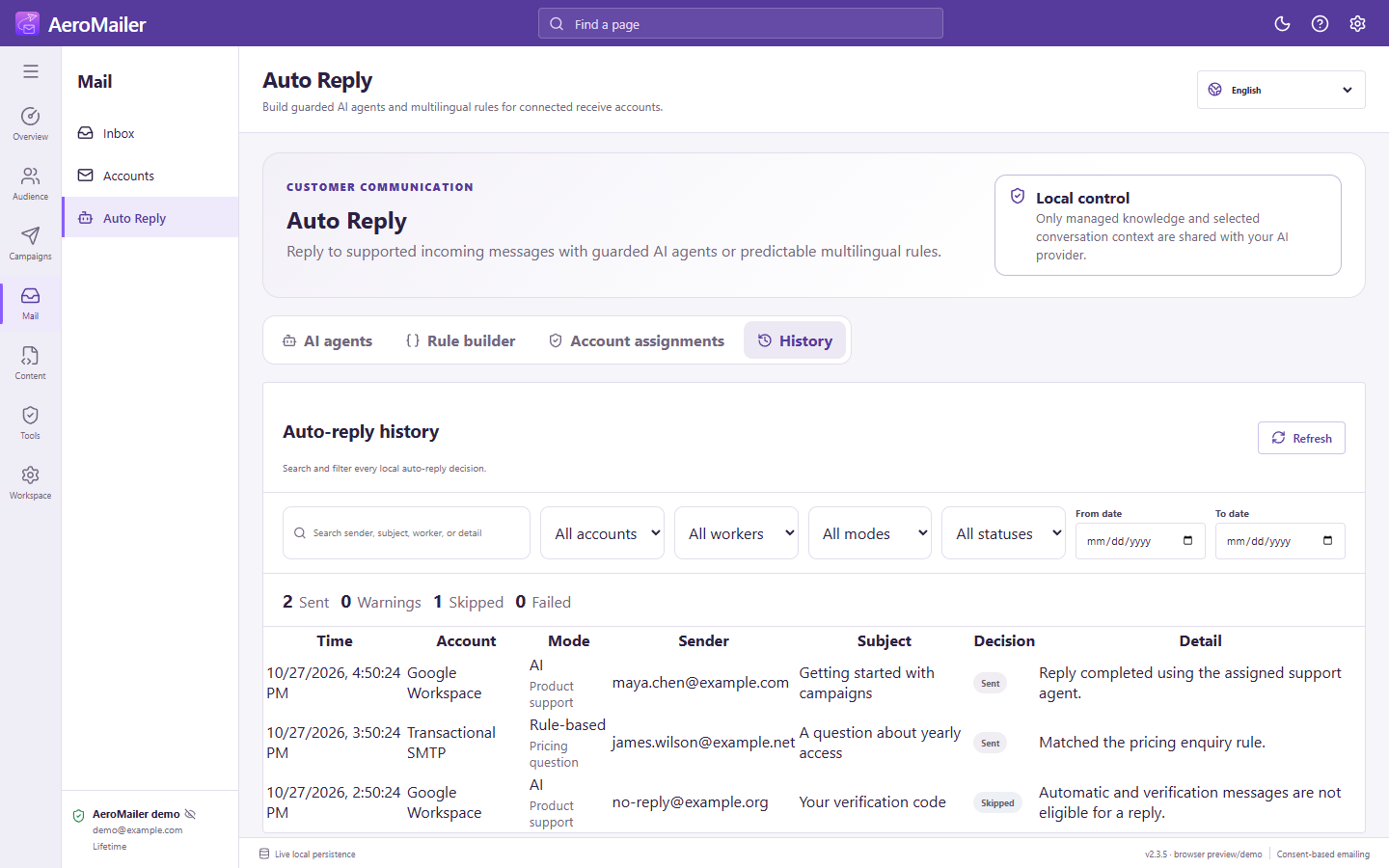
Open Auto Reply → History and Refresh. Search sender, subject, worker, or detail; filter by account, worker, AI/Rule-based/Off-hours mode, status, and dates. Sent with warning means the send succeeded but a follow-up/local action needs attention; do not blindly resend it.
If no reply appears
- Confirm AeroMailer is running online and the IMAP connection can receive the actual message body.
- Check the account assignment is saved in the intended mode and its selected agent/rule is enabled.
- Run the rule simulator or AI routing dry test with the same sender, subject, body, and language.
- Check automated/no-reply/marketing guards, allowed/blocked topics, subscription exclusions, and missing resources.
- Check startup backlog settings, business hours, and recent reply limits. Safety limits can prevent repeated replies to the same sender/account within 24 hours.
Attachments and notes
Use managed attachment resources and verify they remain available. Missing or disallowed files produce warnings/errors, not a safe assumption of delivery. Contact notes require a matching contact and a successful relevant action. Keep error reports redacted and review transient-retry results before manually sending again.