
Accounts
Connect and manage receiving accounts with IMAP
Link multiple inboxes to verified senders and choose a mailbox.
Connect an inbox
- First add and verify the relevant SMTP sending account.
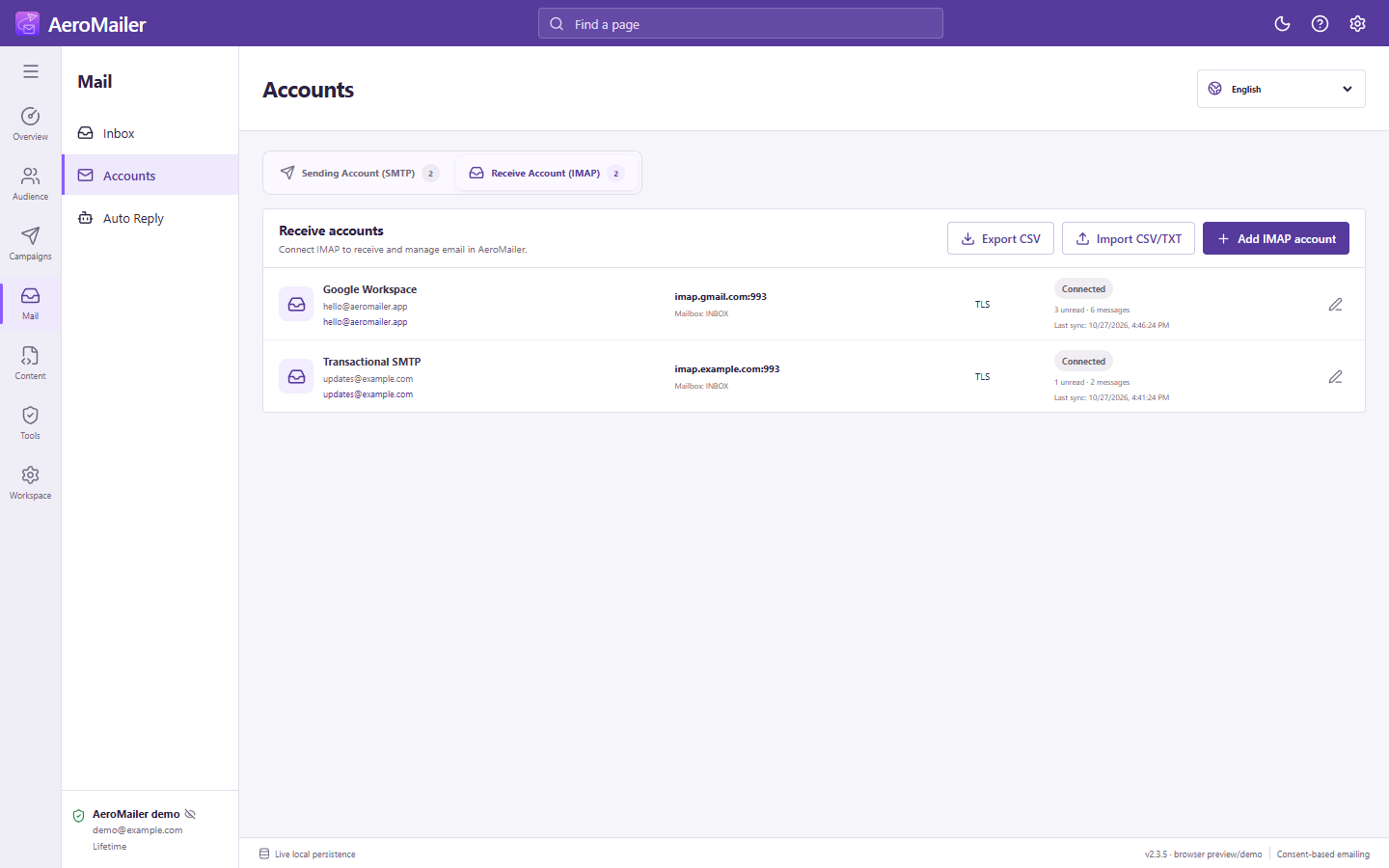
- Open Accounts → Receive Account (IMAP) → Add IMAP account.
- Select the linked sending account, then enter the IMAP host, port, security, username, and mailbox.
- Keep
INBOXfor normal incoming messages. Use Use the protected SMTP password only when the same credential works for IMAP; otherwise enter the receiving password. - Select Test and save. Wait for the connection result before closing.
What is Mailbox?
Mailbox names identify provider folders, not email addresses. The question-mark shows examples: INBOX, [Gmail]/All Mail, and Archive. Names depend on the provider and can be case-sensitive. Synchronizing one mailbox does not automatically synchronize every provider folder.
Manage multiple accounts
Use the receiving tab to edit, disconnect, import, or export connections. Gmail commonly uses imap.gmail.com on 993 with SSL/TLS; follow your provider's configuration. Open Inbox after connecting. A connection error must be resolved before unsubscribe or agents can receive mail.