
Accounts
Add and verify an SMTP sending account
Configure sender credentials, Reply-To, and verification.
Add the account
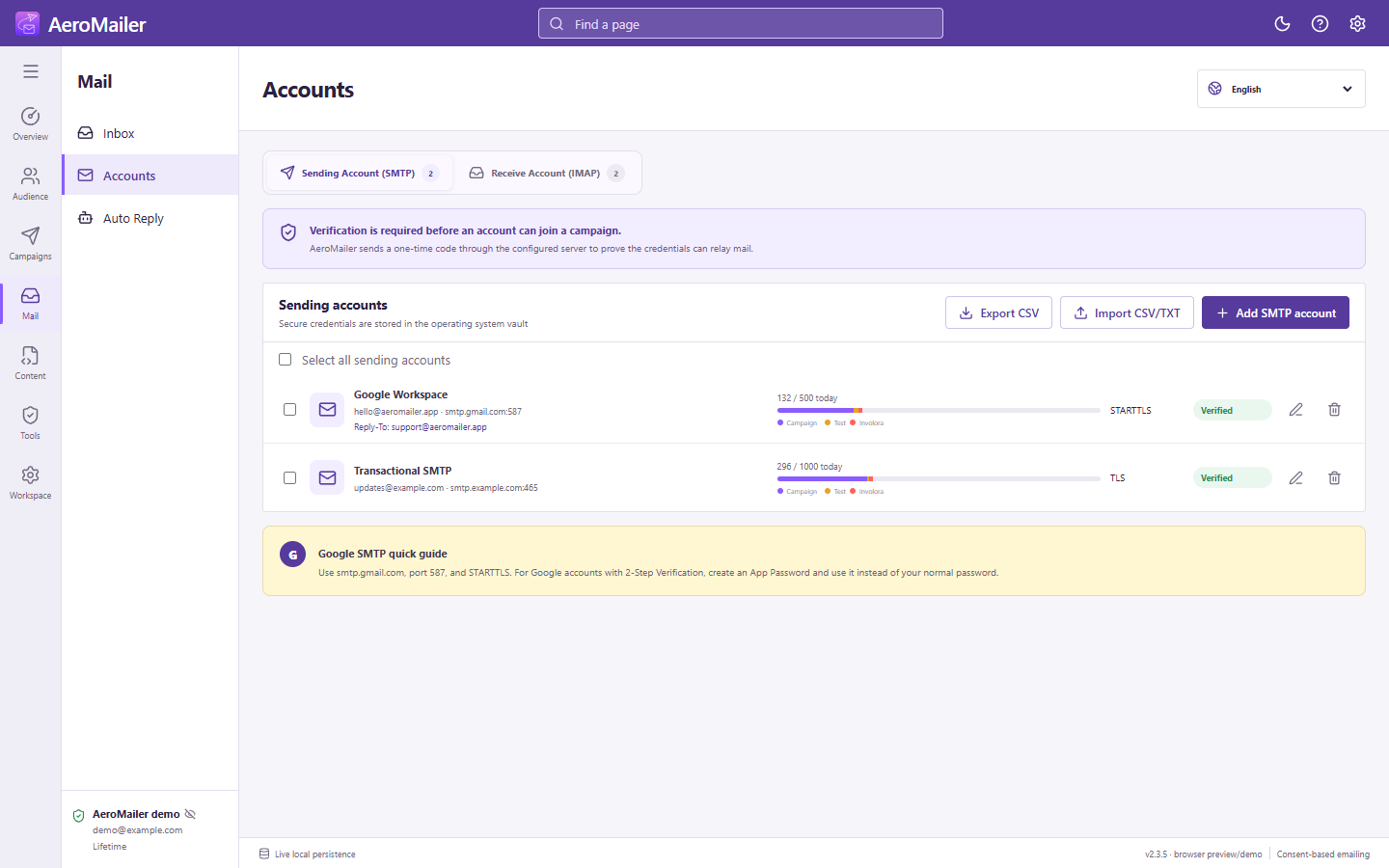
- Open Accounts → Sending Account (SMTP) → Add SMTP.
- Choose a provider and enter the account name, host, port, security, username, password, From email, and From name.
- If needed, configure Reply-To for an inbox you control. Replies go there; SMTP itself does not receive replies.
- Enter a verification recipient you can access and send the code.
- Read the send status, check Inbox and Spam, and enter the received code to complete verification.
Security and ports
Common settings are port 587 with STARTTLS or 465 with SSL/TLS. Match the provider's requirements; do not guess the security type from the host alone. Enter the password itself, without adding quotation marks in the app field.
For STOP detection or auto replies, also configure a receiving account for the inbox that receives the replies.