
Inbox
View attachments and open external email links
Preview supported files and inspect URLs before opening them.
View or download a file
Open a message and use its attachment actions. Images, PDFs, and supported text files can be previewed. Other file types show a download option so you can use an appropriate installed application. If a file is not cached locally, refresh the account and try again.
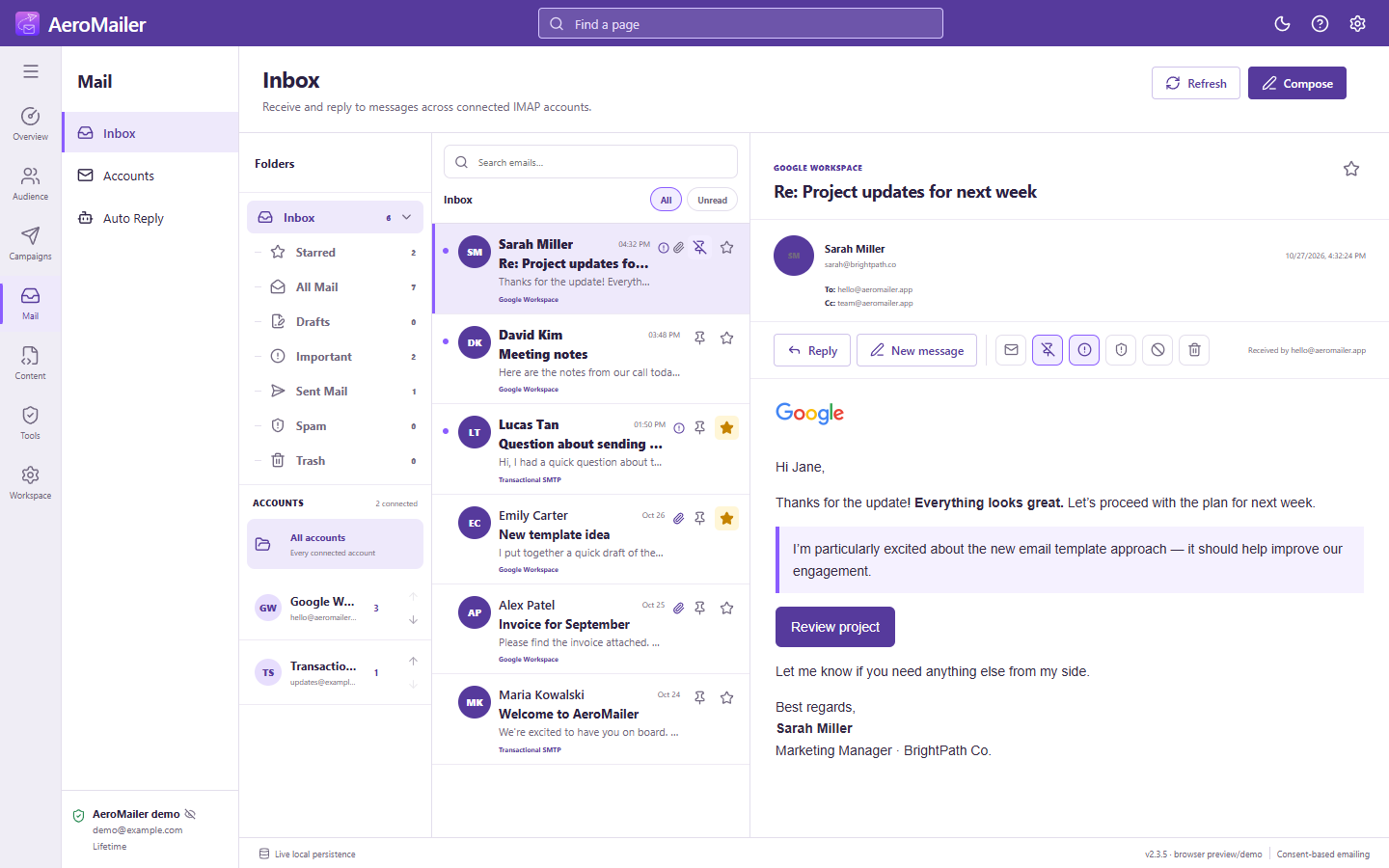
Open a link safely
- Click a link, button, or URL-backed attachment in the message.
- Read the External URL confirmation. Long addresses are visually shortened; use Copy to inspect the complete address.
- Choose Open now to open it in an external browser, or Cancel.
The operating system's configured browser determines which external browser opens. AeroMailer does not guarantee using an arbitrary already-open Chrome, Edge, or Opera window.
Remote images and untrusted files
Remote pictures require network access and an available image host. Loading a remote image can contact its host. Do not open unexpected files or enter credentials on a linked page merely because the message looks legitimate.